Understanding Context Window Management in Claude Code
Understanding Context Window Management in Claude Code
Managing the context window effectively is one of the most critical skills for working productively with Claude Code. This guide explains what the context window is, how Claude Code allocates and consumes tokens, and the best practices for keeping your sessions lean, fast, and cost-efficient.
A bloated context window leads to higher API costs, slower responses, and degraded output quality. Mastering context management ensures Claude Code remains accurate and responsive throughout your development workflow.

🧠 What is Context in Programming?
In day-to-day software development, context is the complete set of background information and artifacts required to understand a problem and implement the correct solution.
When you work on a project, context comes from multiple sources:
- The Codebase: Existing files, architecture, design patterns, and libraries already implemented.
- Product Requirements (PRDs / Specs): Detailed documentation specifying expected features, behaviors, and constraints.
- Issue Trackers: Tickets on Jira or GitHub Issues describing bugs, user feedback, or feature requests.
- Team Communications: Discussions on Slack, PR reviews, or design comments.
- Conversation History: Previous prompts, explanations, and outputs exchanged with your AI coding tool.
- Git Repository History: Commit logs, branches, and diffs tracking code evolution.
Without context, neither a human engineer nor an AI tool can write correct, reliable code.
🪟 What is a Context Window?
A context window is the maximum amount of information (measured in tokens) that an LLM like Claude can see, hold in working memory, and process at one time while generating a response.
Large Language Models (LLMs) cannot process infinite context. Every model has a fixed upper boundary known as the context window.
┌────────────────────────────────────────────────────────┐
│                   Context Window                       │
│  ┌─────────────────┬────────────────────────────────┐  │
│  │  System Prompts │  Conversation & Tool History   │  │
│  │   & Tool Specs  │         (Input + Output)       │  │
│  └─────────────────┴────────────────────────────────┘  │
│                                                        │
│  Working memory available for current request/response │
└────────────────────────────────────────────────────────┘
If your codebase or conversation exceeds this window, the model cannot access earlier information without summarization or truncation.
📏 Claude Code’s Context Window Capacity
Here are the key dimensions of Claude Code’s context window:
- Capacity: Claude Sonnet models have a 200,000 token (~200K) context window. (Advanced models like Opus 4.6 offer up to 1 million tokens, but 200K is the standard working baseline).
- Fresh Sessions: Every new session (
claude) initializes a brand new, empty context window. - Input vs. Output Tokens: Both your messages (prompts, pasted code, images) and Claude’s responses (generated code, explanations, tool execution outputs) consume tokens within the window.
- Token Expansion: Claude’s output and verbose tool responses typically consume ~6x more tokens than your original input prompt.
📈 The Compounding Token Multiplier
Because LLMs are fundamentally stateless, Claude Code has no persistent memory between turns. To maintain continuity, the entire conversation history is re-sent as input with every new prompt.
Turn-by-Turn Token Growth Example
Assume an average turn uses 100 input tokens and 100 output tokens:
| Turn | Prompt + History Sent | Model Output | Turn Total | Cumulative Tokens |
|---|---|---|---|---|
| Turn 1 | 100 tokens | 100 tokens | 200 tokens | 200 tokens |
| Turn 2 | 200 (history) + 100 (new) = 300 | 100 tokens | 400 tokens | 600 tokens |
| Turn 3 | 400 (history) + 100 (new) = 500 | 100 tokens | 600 tokens | 1,200 tokens |
| … | … | … | … | … |
| Turn 10 | 1,800 (history) + 100 (new) = 1,900 | 100 tokens | 2,000 tokens | ~11,000 tokens |
Turn 1: [In][Out]
Turn 2: [Turn 1 History.......][In][Out]
Turn 3: [Turn 1 & 2 History............][In][Out]
Turn 4: [Turn 1, 2 & 3 History..................][In][Out]
Single Long Session vs. Modular Sessions
Developing multiple features in one single session causes exponential context consumption:
- 4 features in 1 single session (40 turns): Uses ~4x more tokens due to massive compounding history.
- 4 features across 4 separate sessions (10 turns each): Consumes only a fraction of the tokens (~25% of the single-session footprint).
The longer a session runs, the faster you burn through your context window. Always isolate features into separate sessions.
🔍 Internal Breakdown of the 200K Context Window
While Claude Sonnet offers a 200K token context window, only about ~150K tokens are directly available for your active work. The rest is reserved for system internals.
Total Context Window (200K Tokens)
┌──────────────────────┬──────────────────────┬───────────────────────────────┐
│ System Prompts (~6K) │ Tool Schemas (~8.3K) │ Auto-Compact Buffer (~33K)   │
├──────────────────────┴──────────────────────┴───────────────────────────────┤
│ Active Workspace / Usable Conversation & Tool Output Buffer (~150K Tokens)  │
└─────────────────────────────────────────────────────────────────────────────┘
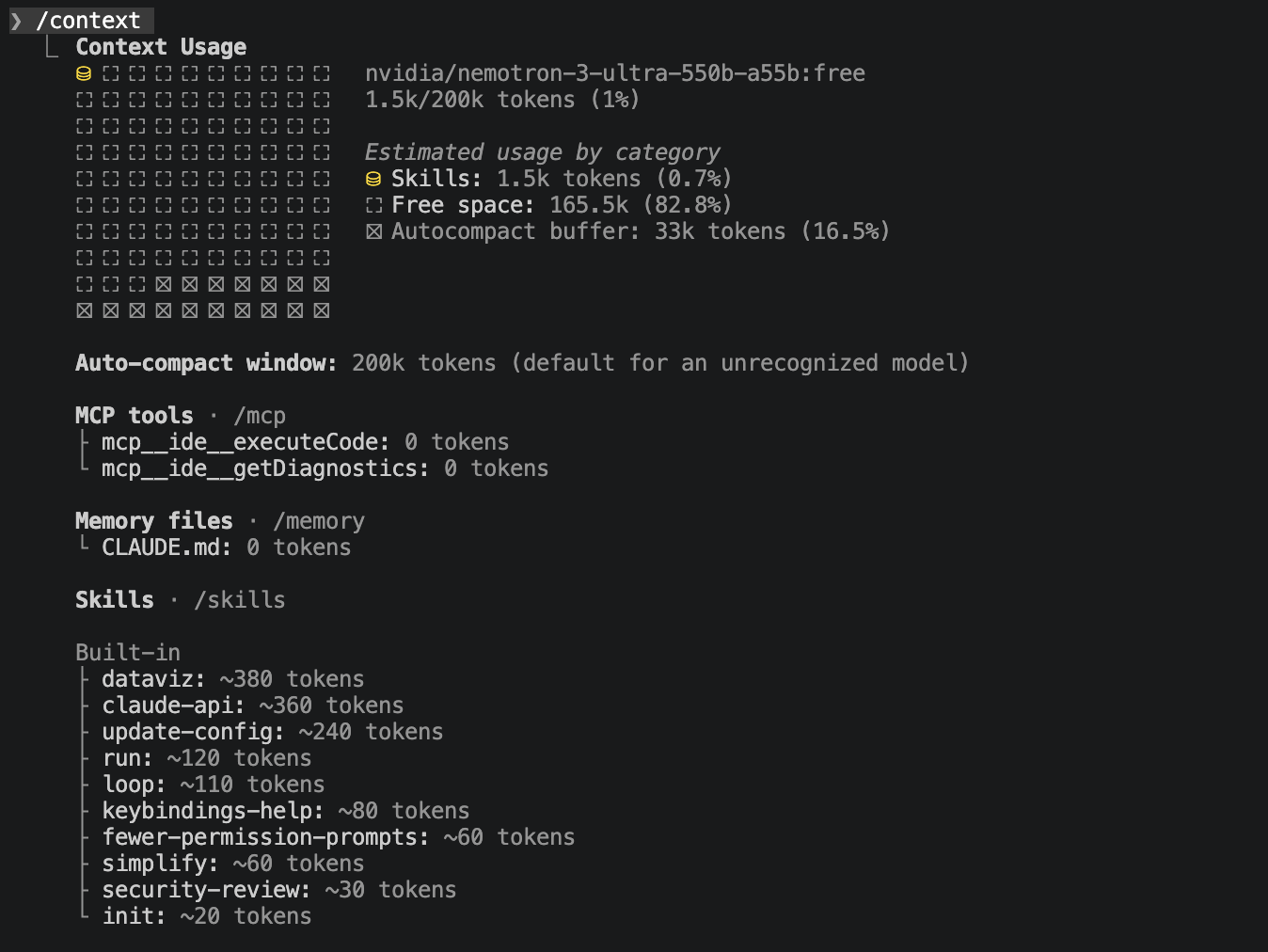
The exact context-window allocation can vary depending on the Claude model you are using. Different models may have different context-window sizes and may reserve different amounts of tokens for system prompts, tools, auto-compaction, and other internal components.
If you check different models, the context will be different because it makes clear that both the total context window and the internal allocation can differ by model/configuration.
e.g. Component Breakdown for Claude Sonet 4.6
| Component | Approximate Size | Description |
|---|---|---|
| System Prompt | ~6,000 tokens | Preloaded instructions defining Claude Code’s behavior and personality. |
| Tool Schemas | ~8,300 tokens | Definitions, input parameters, and capabilities of built-in tools (Bash, FileEdit, etc.). |
CLAUDE.md |
Variable (~few hundred tokens) | Project-specific guidelines loaded at startup. |
| MCP Tools & Skills | Variable | Schemas and instructions for configured MCP servers and custom skills. |
| Auto-Compaction Buffer | ~33,000 tokens | Reserved memory specifically dedicated to storing conversation summaries. |
| Usable Workspace | ~150,000 tokens | Space available for your prompts, code context, and Claude’s responses. |
Inspecting Context in Real Time
You can check your current token breakdown at any point inside a session:
/context
This displays the exact token distribution across system prompts, tool schemas, skills, messages, and available headroom.
💡 Why Context Window Management Matters
- Cost Optimization: Claude Code usage is billed per token. A bloated context window resends thousands of unnecessary tokens with every prompt, significantly increasing costs.
- Workflow Modularity: Maintaining short, focused sessions enforces clean git commits and clear architectural separation.
- Response Quality & Accuracy: When token usage exceeds 120K–130K tokens (approaching the ~150K limit), model performance begins to degrade. Claude may lose track of earlier constraints or produce hallucinations.
🛠️ Strategies to Manage and Recover Context
1. Auto-Compaction (Built-In)
When your active context reaches 75% to 92% capacity (~120K–130K tokens), Claude Code automatically triggers auto-compaction:
- Claude summarizes the entire conversation history up to that point.
- The summary is written to the 33K auto-compaction reserve buffer.
- The raw message and tool history is pruned, instantly freeing up working space.
The limitation of auto-compaction: Auto-compaction triggers automatically, sometimes in the middle of a complex multi-step task. Because summarization is inherently lossy, critical nuances or code snippets might get lost mid-implementation.
2. Proactive Manual Compaction (/compact)
Instead of waiting for auto-compaction to trigger unpredictably, run manual compaction at natural milestones between tasks:
/compact
Claude will summarize your conversation and shrink your active message token usage:
Before /compact:  Messages: 7.5K tokens
After /compact:   Messages: 3.4K tokens
- Press Ctrl + O to view the generated summary at any time.
- Proactive compaction keeps the conversation clean without interrupting active code generation.
3. Sub-Agents for Isolated Tasks
Claude Code can spawn sub-agents to perform focused or parallel tasks:
- Each sub-agent operates in its own isolated 200K context window.
- Sub-agents run exploratory searches, run tests, or execute batch edits independently.
- Once finished, the sub-agent returns only a concise summary to the main agent.
- This shields the primary session context from hundreds of lines of verbose tool outputs.
4. Resetting via /clear or New Sessions
When a feature or debugging session is complete:
/clear: Clears conversation history while keeping the current session open.- Start a New Session (
claude): The recommended and cleanest approach. Wrap up a feature, commit to Git, and launch a fresh session for the next task.
5. Exclude Unwanted Files with .claudeignore
Prevent large datasets, build artifacts, logs, and sensitive files from entering Claude’s context:
Create a .claudeignore file in your project root (similar to .gitignore):
# .claudeignore
node_modules/
dist/
build/
*.log
.env
data/*.csv
Files matching .claudeignore rules will not be read into Claude’s context window.
💻 Terminal vs. GUI Access Modes
Claude Code can be accessed via the terminal, the Claude desktop app, or the VS Code GUI extension.
While GUI extensions offer visual diffs, the terminal remains the native, power-user environment:
- Full access to terminal hooks, session switching, and script automation.
- Advanced features like memory editing (
MEMORY.md) and custom workflow orchestration are fully supported in the terminal. - Fast, lightweight, and editor-agnostic.
✅ Best Practices Checklist
| Best Practice | Description |
|---|---|
| One Feature = One Session | Never build multiple distinct features in a single session. Close and start fresh. |
Proactive /compact |
Run /compact manually after finishing milestones instead of relying on auto-compaction. |
| Write Specific Prompts | Clear, concise instructions reduce unnecessary back-and-forth and tool output bloat. |
| Use Sub-Agents for Research | Delegate large exploratory searches or parallel tasks to sub-agents. |
Configure .claudeignore |
Keep large builds, data files, and logs out of the context window. |
| Commit at Milestones | Commit working code to Git regularly so you can start a fresh session with confidence. |
🔥 Key Takeaway
Treat context like RAM. Keep it lean, monitor it with
/context, compact it proactively with/compact, and start fresh sessions per feature to keep Claude Code fast, accurate, and cost-effective.